 SwingDraw
How to draw lines on golf swing video on iPhone.
The useful question is not how many lines an app can draw. It is whether one reference makes the movement you are practicing easier to see on the right frame.
Draw and export with the actual controls
- Open the saved swing in Library. Pause playback and use the frame arrows to find the checkpoint.
- Select Line and drag between the two points you want to connect. Use Circle when an area is clearer than a straight reference.
- Select Move to adjust an existing mark. Use its edit handles to reposition the reference; Undo reverses the last drawing action and Clear removes the marks.
- Step through nearby moments and check what changes relative to the reference. A manual line is a mark you placed, not an automatically tracked body part.
- Choose Save Photo for the current annotated frame or Save Video for a clip with visible drawings and overlays. Inspect the exported result before sending it.
For the full handoff, follow the guide to sharing a swing and a clear question.
Make the comparison useful
- Record from a repeatable angle. Use down-the-line or face-on framing and keep the phone still. A line cannot correct a camera angle that changed between swings.
- Move to the frame that answers your question. Step through setup, takeaway, top, transition, impact, and finish instead of drawing while the clip is still moving.
- Draw one useful reference. Shaft plane, posture, head position, hand path, shoulder tilt, or hip line is enough for one review.
- Keep the reason with the clip. Add the club, drill, tag, or note that explains why the line matters.
- Compare the same checkpoint later. Match camera angle, club, and swing phase before deciding whether the movement changed.
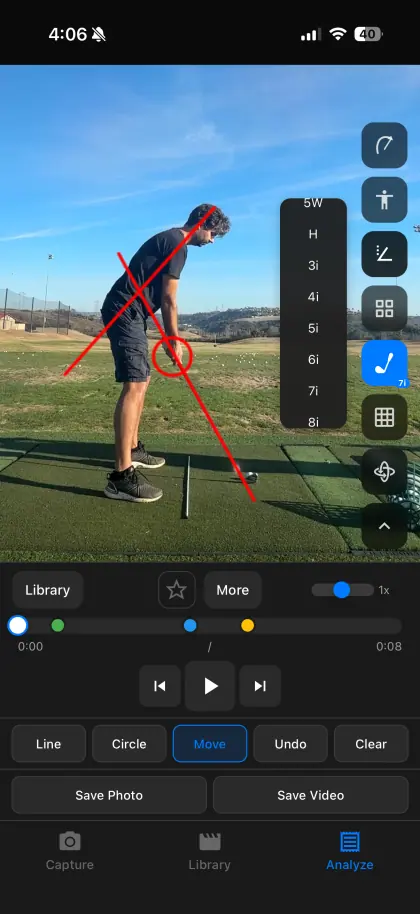
Which line should you draw?
Shaft plane
On a down-the-line clip, place a reference along the shaft at setup or through a checkpoint your coach uses. Compare that same frame later. The line is a reference, not proof that one universal plane fits every golfer.
Posture or spine angle
Use a face-on or down-the-line frame with the entire body visible. Mark the setup position, then inspect whether the relationship changes through the part of the swing you are working on.
Head position
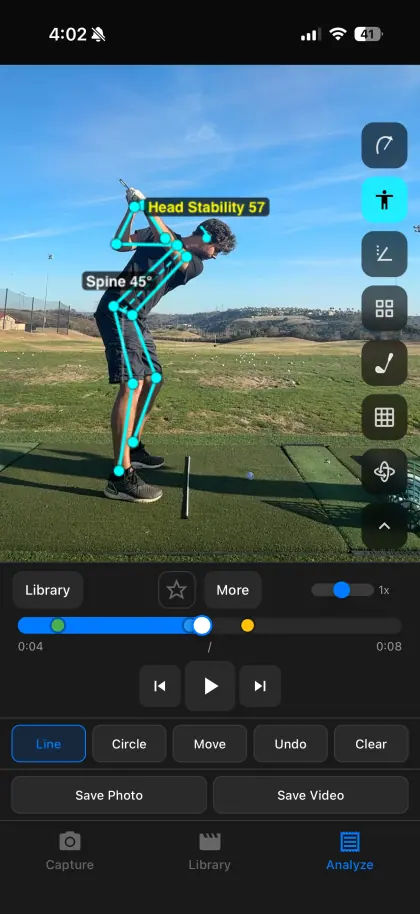
A circle or short reference around the head can make large movement easier to notice. SwingDraw also includes a head-stability view, shown below, when you want a visual trace instead of manually redrawing the marker.
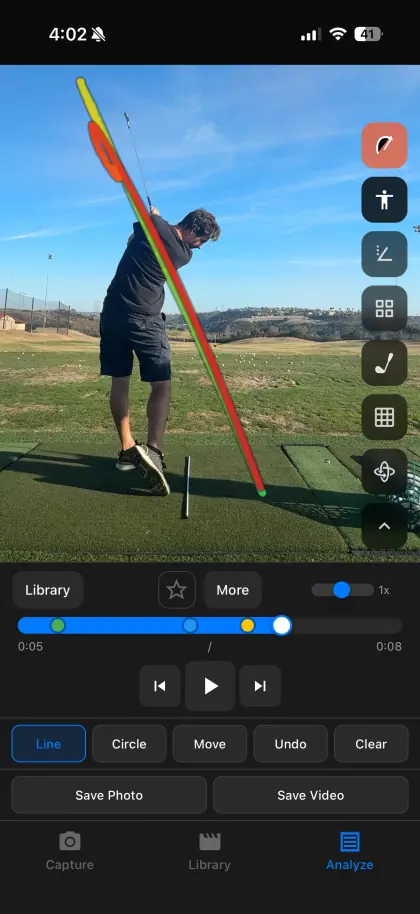
Three mistakes that make the lines misleading
- Changing the camera position. A phone moved several inches can make the shaft, hands, or body appear to cross a different reference.
- Comparing different phases. Match the same swing checkpoint before comparing positions.
- Covering the screen in marks. More annotations do not create more understanding. Pick the line connected to the drill, lesson, or ball-flight pattern.
Use the line to test a change
Save the marked clip, then record another swing from the same view. Put the two clips into the comparison workflow and inspect one matched checkpoint. That turns the annotation into a repeatable practice test instead of a one-time screenshot.
Your next range session,
on the record.
Record or import a swing, mark the frame that matters, and compare it with last week. Every tool is included.